A Scene captures your projector exactly how it is right now and brings it all back later with a single tap. Movie night, the big game, a bright Sunday matinee - each its own Scene, each one a tap away. You pick precisely which parts a Scene keeps, and only the parts your projector actually reports are on offer.
Scenes are part of Projector Pilot Pro.
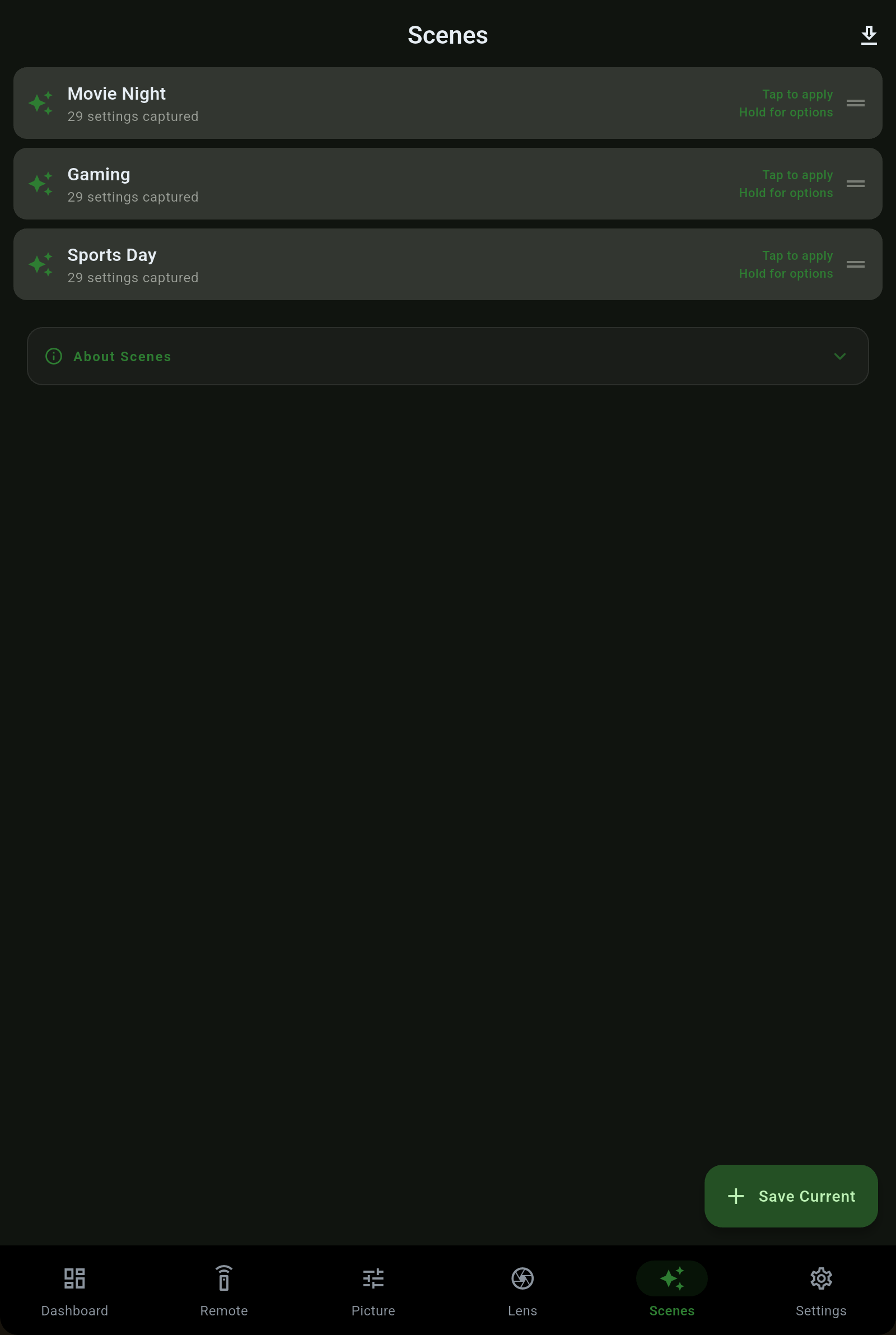
A single Scene can snapshot any of the following. Recall replays only the parts you ticked, so a "late show" Scene can drop the light output and leave everything else alone.
The projector's power state, so a Scene can wake it or send it to standby as part of the setup.
The source the Scene switches to, so "Movie Night" lands on the right HDMI every time.
Color mode and the picture values, each on the projector's own menu scale.
The signal-side settings your projector exposes for the content you are watching.
Light-source output, so a bright room and a dark one get their own setting.
The alignment and geometry state that frames the image on your screen.
The audio settings the projector reports, kept alongside the rest.
The tick list is built from what your projector actually answers, so nothing you save is a guess.
Paste one block into your Home Assistant configuration once and Projector Pilot writes a script for every Scene you have, plus power, each input, each color mode and each lens memory your projector actually holds. An automation or a voice assistant can then run any Scene, and the app removes the scripts it wrote when you turn the sync off, touching nothing else.
Tuned a Scene you are proud of? Export it and hand it to a friend, or import one someone shared with you. Scene profiles move between installs so a good setup does not have to be rebuilt from scratch on every projector.
 Projector Pilot