The dashboard shows the selected projector: whether it is connected, whether it is on, what it is showing, and the cards you pick. Everything on it is read from the projector, not guessed.
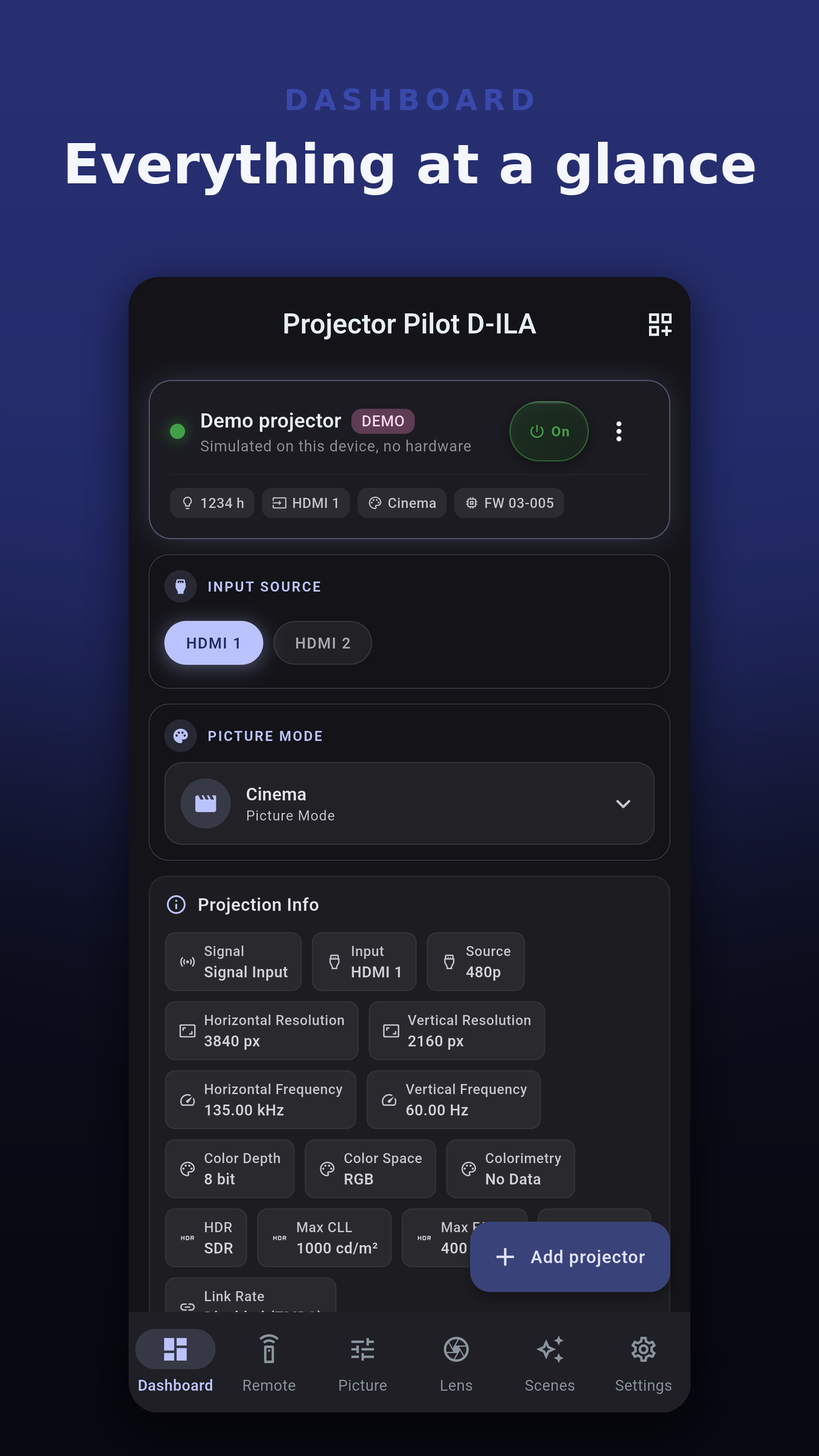
Turning the projector off asks "Turn off the projector?" with the reminder that the picture goes off for everyone watching. Turning it on does not ask. A laser or lamp projector then runs its own cool-down before it reaches standby, and the card follows it.
| Chip | Shows |
|---|---|
| Light source hours | The hours the projector reports for its laser or lamp. |
| Input | The current input. |
| Picture mode | The active picture mode, while the projector is on. |
| Firmware | The firmware version, as FW and the version. |
A card appears while the projector is on and only when your model offers that setting. The lock badge marks a Pro card; tapping it opens the purchase screen.
| Card | What it does | Tier |
|---|---|---|
| Input Source | Switch inputs. HDMI 1 is free; the others need Pro. | Free and Pro |
| Picture Mode | Pick a picture mode. | Pro |
| Projection Info | What the projector reports about the signal and itself. | Pro |
| Hide | Hide on and Hide off. JVC projectors do not report whether the picture is hidden, so the card cannot show it. | Pro |
| Picture Controls | Contrast, brightness, color, tint and enhance at a glance, with a link to the Picture tab. | Pro |
| HDR | HDR processing, HDR level and auto tone mapping, on models that support them. | Pro |
| Scenes | Your saved scenes. | Pro |
| Light Output | The light output settings your model offers. Hidden until you add it. | Pro |
| Lens Memory | The lens memories your model offers. Hidden until you add it. | Pro |
An empty dashboard says why, so it is never just blank.
With Pro, on Android and iOS, five widgets put the projector on your home screen. Each one is set up for one projector.
Power, input, picture mode and hide.
Power, connection and light source hours.
One tap applies a saved scene.
Power, input, picture mode and light source.
One tap switches the input.
 Projector Pilot D-ILA